
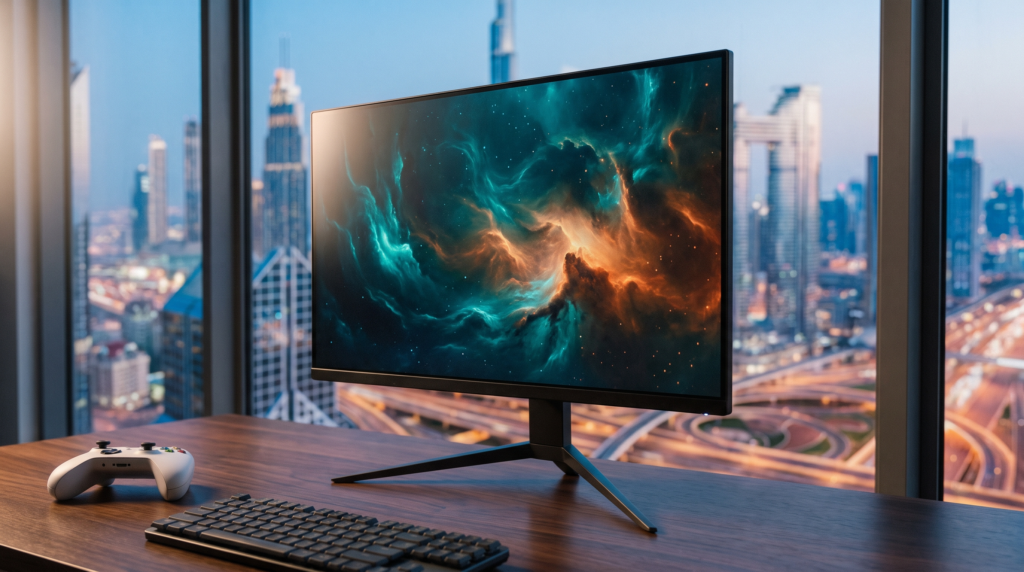
ASUS ROG Strix XG27UCS review UAE: a 27-inch 4K panel running at 160Hz finally puts a monitor in the same league as what a PS5 Pro or an M4 MacBook Air can actually push out. But three details buried in the official ASUS specification sheet decide who this screen is genuinely right for, and most buying guides skip past all three.
This article contains affiliate links. We may earn a commission from qualifying purchases at no extra cost to you.
Quick Verdict
The ROG Strix XG27UCS is one of the most sensible 4K gaming monitors you can put on a UAE desk right now. You get a genuine 3840×2160 Fast IPS panel at 160Hz with a 1ms GTG response time, 95% DCI-P3 coverage, and both FreeSync and G-SYNC Compatible certification, which covers console and PC equally well. Its real strength is versatility: one cable from a USB-C laptop, HDMI 2.1 for a console, DisplayPort for a desktop GPU. Its real weakness is that ASUS gave it exactly one of each. There is a single HDMI 2.1 port, the USB-C carries only 15W of power delivery, and there are no built-in speakers at all. If you own one console and one computer, this is an easy recommendation. If you own a PS5 and an Xbox, budget for an HDMI switch before you order.
Key Features and Specifications
- The ASUS ROG Strix XG27UCS is a 27-inch Fast IPS panel at 3840×2160 running up to 160Hz, above the 144Hz where most 4K gaming monitors stop.
- 1ms grey-to-grey response time with ASUS Extreme Low Motion Blur Sync (ELMB SYNC), which runs blur reduction and variable refresh rate at the same time instead of forcing you to pick one.
- 95% DCI-P3 and 130% sRGB coverage, wide enough that the same screen handles colour-managed photo and video work, not just games.
- VESA DisplayHDR 400 and HDR10 support, with 400 cd/m2 typical brightness rising to 450 cd/m2 peak in HDR.
- HDMI 2.1 with FRL, which is what carries 4K at 120Hz from a current console rather than capping you at 60Hz.
- USB-C with DisplayPort Alt Mode, so a compatible laptop drives the display over a single cable.
- FreeSync and NVIDIA G-SYNC Compatible certification on the same panel.
- 100x100mm VESA mounting, 6.57kg, and a three-year manufacturer warranty.
Full Specification Sheet
| Specification | ASUS ROG Strix XG27UCS |
|---|---|
| Panel type | Fast IPS |
| Screen size | 27 inches, 16:9 |
| Resolution | 3840 x 2160 (4K UHD) |
| Refresh rate | 160Hz |
| Response time | 1ms (GTG) |
| Brightness | 400 cd/m2 typical, 450 cd/m2 HDR peak |
| Contrast ratio | 1000:1 |
| Colour gamut | 130% sRGB, 95% DCI-P3 |
| HDR | VESA DisplayHDR 400, HDR10 |
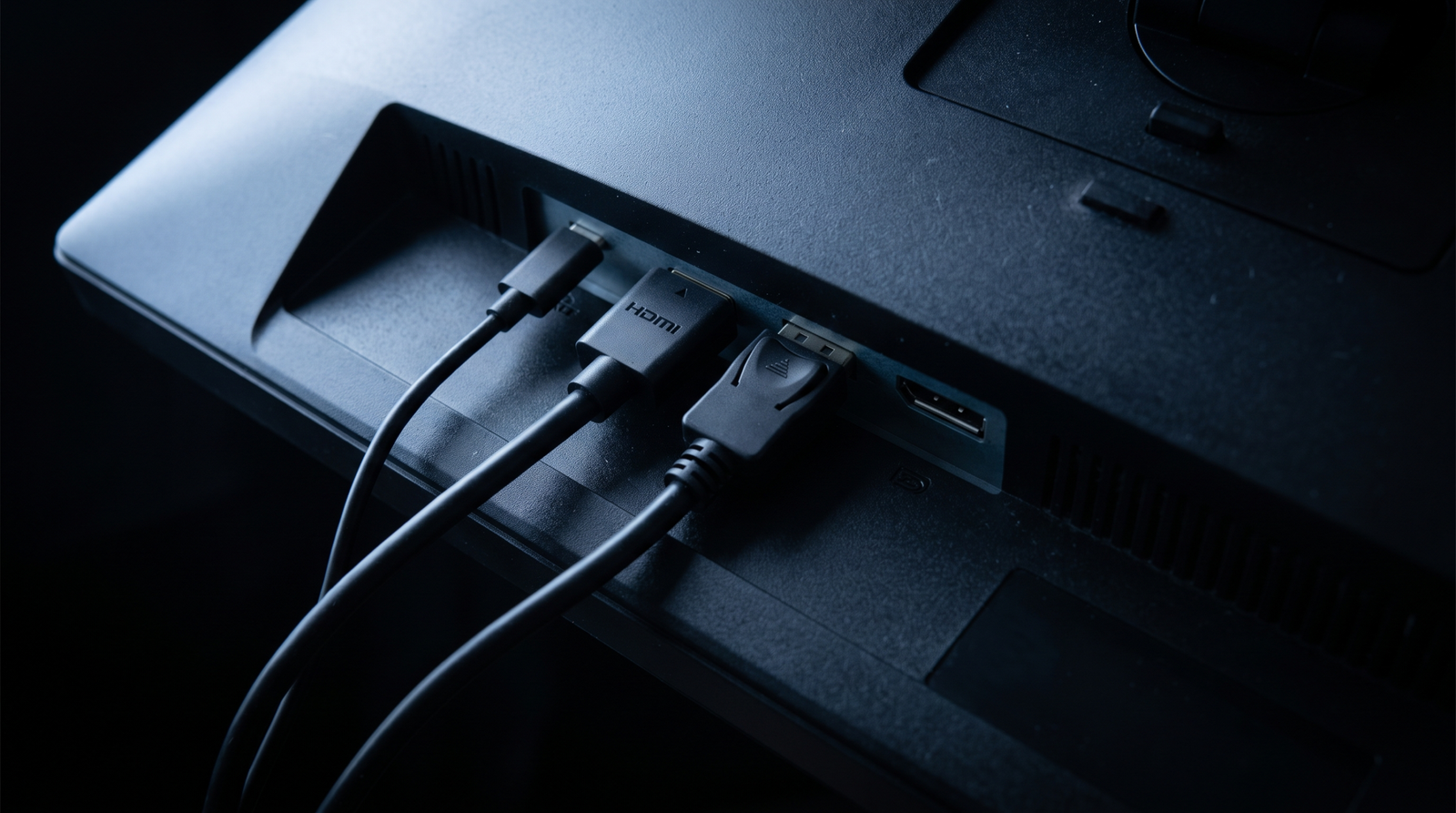
| Video inputs | DisplayPort 1.4 x1, HDMI 2.1 (FRL) x1, USB-C (DP Alt Mode) x1 |
| USB-C power delivery | 15W |
| Adaptive sync | FreeSync and G-SYNC Compatible |
| Speakers | None |
| VESA mount | 100 x 100mm |
| Weight | 6.57kg |
| Dimensions | 61.5W x 21.9D x 51.3H cm |
| Warranty | 3 years manufacturer warranty |
Three Limitations Worth Knowing Before You Order
These are not deal-breakers, but they are the things that turn into a second purchase or a return if nobody tells you first. All three come straight from the official ASUS specification sheet.
| Limitation | Who it affects | What to do about it |
|---|---|---|
| Only one HDMI 2.1 port | Anyone with two consoles, or a console plus a set-top box | Add an HDMI 2.1 switch rated for 4K120, or keep the second device on DisplayPort or USB-C |
| USB-C delivers only 15W | Laptop owners expecting single-cable charging | 15W carries video but will not meaningfully charge a modern laptop. Keep using the laptop own charger alongside it |
| No built-in speakers | Console players without a headset | Plan for a headset, desktop speakers, or audio out from the console itself |
Competitor Comparison
| Model | Key strength | Best for | Trade-off |
|---|---|---|---|
| ASUS ROG Strix XG27UCS | 160Hz 4K Fast IPS with ELMB SYNC and USB-C input | One console plus one computer on a single desk | Single HDMI port, 15W USB-C, no speakers |
| 27-inch 4K OLED gaming monitors | Effectively infinite contrast and near-instant pixel response | Dark-room players who want maximum HDR impact | Substantially more expensive, and burn-in caution applies to static HUDs |
| 32-inch 4K IPS gaming monitors | More screen area at the same resolution | Players who sit further back or want a desk-sized console screen | Lower pixel density, and 27 inches is the sharper choice at close range |
Unboxing and First Impressions
The XG27UCS ships in the standard ROG layout, with the panel, the tripod-style stand base, the upright arm, and a cable set. Assembly is tool-free: the arm clips into the back of the panel and the base screws into the arm by hand. At 6.57kg assembled it is light enough for one person to lift onto a desk without help, and the tripod base takes up noticeably less depth than the wide flat plates older ASUS monitors used. The finish is matte black with restrained ROG detailing rather than the aggressive angular styling the range is known for, which makes it much easier to justify in a living room or a shared home office.
Build Quality and Design
ASUS put a full ergonomic stand on this model, and that matters more day to day than any panel specification. The screen tilts, swivels, pivots to portrait, and adjusts for height, so you can set it correctly for your chair instead of stacking it on books. The 100x100mm VESA pattern is there if you would rather run a monitor arm and reclaim the desk space entirely. The bezels are thin on three sides. Because there are no speakers, the rear housing stays slim, which helps if you wall-mount it. The port cluster sits in a recess facing downward, which keeps cables tidy but does make the single HDMI port slightly awkward to reach once the monitor is already mounted.
Step-by-Step Setup Guide
- Assemble the stand: clip the arm into the rear mount on the panel, then hand-tighten the base screw. No tools required.
- Decide your port allocation before plugging anything in. With one HDMI 2.1, one DisplayPort 1.4, and one USB-C, each device needs its own lane.
- Connect a console to the HDMI 2.1 port using a certified Ultra High Speed HDMI cable. An older standard cable will silently cap you at 4K60.
- Connect a desktop GPU to DisplayPort 1.4 for the full 160Hz at 4K.
- Connect a USB-C laptop to the USB-C port for single-cable video. Keep the laptop charger connected, because 15W will not sustain it.
- In the on-screen menu, enable the highest refresh rate available for the active input. Monitors do not always default to it.
- Turn on Adaptive Sync in the monitor menu, then enable G-SYNC or FreeSync in your GPU control panel, or VRR in your console video settings.
- Enable ELMB SYNC only if you want blur reduction alongside VRR. It reduces brightness, so judge it in your own lighting.
- Enable HDR at the source device rather than only on the monitor, and expect DisplayHDR 400 to be a modest lift rather than a transformation.
Performance and What the Specifications Actually Mean
We have not physically tested this unit. What follows is drawn from the published ASUS specifications, the established behaviour of this panel class, and the aggregated feedback of 412 verified Amazon.ae buyers, who rate the ROG Strix XG27UCS at 4.4 out of 5 at the time of writing.
The headline number that matters is 160Hz at native 4K. Most 4K gaming panels stop at 144Hz, and the extra 16Hz is a genuine if modest advantage on a PC that can drive it. On a console the ceiling is 120Hz regardless, so the value there comes from HDMI 2.1 with FRL, which is what allows 4K120 to pass through at all. A monitor without it drops you to 4K60 no matter what the panel itself is capable of.
Fast IPS at 1ms GTG is the practical sweet spot for mixed use. It gives you the wide viewing angles and colour consistency IPS is known for, without the smearing older IPS panels showed in dark scenes. ELMB SYNC is the more interesting inclusion, because running blur reduction and adaptive sync simultaneously is something many competing monitors still cannot do.
Be realistic about HDR. DisplayHDR 400 with a 1000:1 contrast ratio and no local dimming means HDR content will look brighter and slightly more saturated, not dramatically different. If HDR impact is your priority, that is the argument for an OLED panel instead. Where this screen does deliver is SDR colour accuracy: 95% DCI-P3 and 130% sRGB is genuinely useful coverage for editing photos or grading video on the same display you game on.
UAE and Middle East Real-World Context
Two things about UAE homes shape how this monitor performs. The first is ambient light. Apartments here tend to have large windows and strong daytime sun, and 400 cd/m2 is adequate rather than generous. In a west-facing room in the afternoon you will want blinds. The glossy screen finish sharpens contrast but also reflects more than a matte coating, so position it perpendicular to your window rather than facing it.
The second is dust. Fine dust settles quickly in this climate and shows up clearly on a dark glossy panel. That is a maintenance habit rather than a defect, and it applies to every glossy display sold here.
Practically, this monitor suits the common UAE setup of one console plus one laptop very well, especially in apartments where a dedicated gaming room is not an option and the same desk has to serve work and play. If you have already read our PlayStation 5 Pro review or our PlayStation 5 Slim review, this is the class of display that lets either console output what it is actually capable of. The same applies to the Nintendo Switch 2, though that console will not saturate a 4K160 panel. For laptop users, our MacBook Air M4 review covers the machine that pairs most naturally with the USB-C input, keeping in mind that the 15W limit means you will still need the MacBook charger. If single-cable power matters to you, a separate solution like the one in our Anker 140W USB-C charger review handles that side independently.
Where to Buy in the UAE
| Retailer | What to check | Notes |
|---|---|---|
| Amazon.ae | Seller is Amazon or an authorised distributor, and the listing states UAE warranty | Prime delivery, and returns handled directly through Amazon |
| ASUS authorised UAE retailers | Local warranty registration and regional stock | Usually the cleaner route for warranty claims and RMA handling |
Warranty and Regional Support
ASUS lists a three-year manufacturer warranty on this model, which is longer than the two years most monitors in this bracket carry and is a meaningful part of the value. Coverage in practice depends on where you buy. Purchasing from Amazon.ae with Amazon as the seller, or from an authorised ASUS distributor in the UAE, keeps you inside the regional service network. Keep your invoice, and register the serial number with ASUS after setup so a later claim does not depend on finding the receipt. Check the listing for a stated UAE or regional warranty before ordering, because an international-version listing may only carry international coverage.
Cleaning and Long-Term Care
A glossy 4K panel shows every fingerprint and every speck of dust, and UAE dust makes that a weekly task rather than a monthly one. Use a dry microfibre cloth first to lift dust before any wet cleaning, because dragging grit across a glossy coating is what causes fine scratches. If you need moisture, apply a screen-safe solution to the cloth, never directly to the panel. Avoid household glass cleaner entirely, as ammonia damages anti-reflective coatings. Keep the downward-facing port recess clear of dust as well, and check the ventilation slots on the rear housing occasionally.
Final Verdict and Purchasing Recommendation
The ROG Strix XG27UCS earns its place as a default recommendation for anyone in the UAE building a single desk that has to handle both a console and a computer. The 160Hz 4K Fast IPS panel, HDMI 2.1, wide colour coverage, full ergonomic stand, and three-year warranty add up to a well-judged package. Just buy it with clear eyes: one HDMI port, 15W over USB-C, and no speakers are real constraints, and knowing them in advance is the difference between a monitor that fits your setup and one that needs accessories to work.
Frequently Asked Questions
Does the ASUS ROG Strix XG27UCS support 4K 120Hz on PS5 and PS5 Pro?
Yes. It has an HDMI 2.1 port with FRL, which is the requirement for passing 4K at 120Hz from a current-generation console. You will need a certified Ultra High Speed HDMI cable, and you should enable 120Hz output and VRR in the console video settings.
Can it charge my laptop over the USB-C cable?
Not meaningfully. ASUS rates the USB-C port at 15W power delivery, which is enough to trickle a phone but well below what a modern laptop draws. The port carries video over DisplayPort Alt Mode, so you do get single-cable display, but you should keep using your own laptop charger.
How many devices can I connect at once?
Three, one per input: one on HDMI 2.1, one on DisplayPort 1.4, and one on USB-C. There is only a single HDMI port, so two consoles means either swapping cables or adding an HDMI 2.1 switch that supports 4K at 120Hz.
Does it have built-in speakers?
No. ASUS confirms there are no speakers on this model. Console players will need a headset connected to the controller, desktop speakers, or a separate audio path from the source device.
Is DisplayHDR 400 good enough for HDR gaming?
It is entry-level HDR. With a 1000:1 contrast ratio and no local dimming, HDR content looks brighter and a little more vivid rather than dramatically transformed. If HDR impact is your main priority, an OLED panel is the category to look at instead. The stronger suit of this monitor is accurate SDR colour at 95% DCI-P3.

- شاشة ألعاب 27 بوصة بدقة 4K (3840 × 2160) HDR مع معدل تحديث فائق السرعة 160 هرتز مصممة للاعبين المحترفين ولتجربة لعب غامر…
- توفر تقنية IPS السريعة من اسوس وقت استجابة يبلغ 1 مللي ثانية بمعيار (GTG) مما يضمن الحصول على مرئيات فائقة الدقة بمعدل إ…
- تقنية المزامنة الضبابية بطيئة الحركة (أي ال ام بي سينك) المقدمة من أسوس تعمل التقنية الضبابية بطيئة الحركة جنبا إلى جنب …